Image to Grid
Upload any image and convert it into a Tomodachi Life pixel grid instantly.
 Living the Grid
Tomodachi Life Pixel Art Tool
Living the Grid
Tomodachi Life Pixel Art Tool
Tomodachi Life Pixel Grid Maker
Convert any image into a complete Tomodachi Life hand-copy recipe: choose an item type, match Game-compatible 84 colors, follow Palette House brush setup, and export a numbered guide for custom items, clothes, posters, TV screens and more!
Made by fans, for Tomodachi Life fans.
Upload an image to create your Tomodachi Life pixel grid.
Upload an image or use the demo to create your first grid.
Projects save in this browser
Upload any image and convert it into a Tomodachi Life pixel grid instantly.
Starts with a safer Palette House reference set and keeps Extended 120 available when you need nuance.
Download your grid as PNG or get a numbered pattern to follow step-by-step.
Step-by-step tutorials for Palette House, custom items, and more.
Creator toolkit
Living the Grid is now organized around the full repainting workflow: pick the right item preset, confirm brush and grid settings, open a gallery recipe, then export a numbered reference you can follow in Palette House.
Grid Maker Guide
A Tomodachi Life pixel grid is a numbered reference pattern that turns an image into small square cells you can recreate inside Palette House. Living the Grid starts with the Game-compatible 84 color set, adds optional grid lines and numbers, and exports a PNG guide that stays on your device.
The goal is not to send files into the game. It gives you a clear pattern for rebuilding fan art, clothes, posters, room details, TV screens, and other island decorations by hand with fewer color guesses. For a deeper walkthrough, read the Tomodachi Life pixel grid guide, then use the grid size chart when a design needs a non-square size such as 118 x 77.
| Grid Size | Best For | Tradeoff |
|---|---|---|
| 16x16 | Icons, simple symbols, quick drafts | Very fast, but low detail |
| 24x24 | Small objects and bold silhouettes | Readable without too many cells |
| 32x32 | Most custom items and posters | Good balance of detail and effort |
| 48x48 | Faces, scenes, TV art, detailed clothes | Best detail, but slower to copy |
Numbered patterns make large designs easier to follow because every grid cell maps to a palette color. Instead of checking each shade visually, you can follow the color list row by row and avoid mistakes when rebuilding pixel art in Palette House.
Image uploads stay in your browser. The app reads the file locally, draws the preview on canvas, converts colors on your device, and creates downloadable PNG patterns without sending your source image to a server.
Palette House Mapping
Living the Grid does not modify game files or import images directly. It turns your source image into a Palette House reference: a grid size, matched colors, optional row and column labels, and a numbered pattern you can copy by hand in-game. If you are researching direct save-file replacement, read the TomoTexture download and safety notes before installing any external Windows executable.
The app grid is a planning guide. In the game, the final result depends on the canvas area, brush shape, brush size, and how consistently you copy each cell. Use the exported numbered pattern as the source of truth while you paint.
The in-game grid view is a visual overlay, not a new canvas size. Living the Grid divides your reference into cells so you can place colors consistently even when the game only shows guide lines.
For blocky pixel art, use a square brush and keep the brush size consistent. Smooth or round strokes can soften edges, so clean outlines in the editor before copying them into Palette House.
The numbered export maps each cell to a color index. Keep the Tomodachi Life palette open when two nearby shades look similar, then copy large color regions before small accents.
Dither helps photos, skin tones, and skies look smoother with fewer colors. Turn it off for logos, icons, text-like shapes, and anything that needs crisp edges.
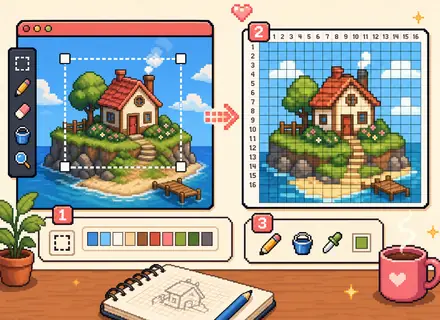
A complete beginner's guide to using the pixel grid tool, choosing sizes, and exporting patterns.
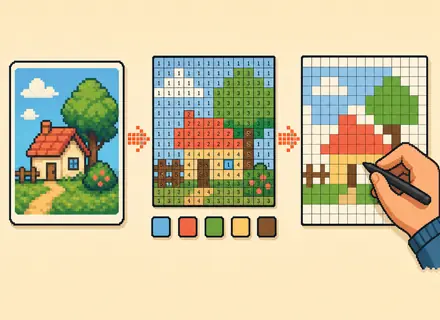
You cannot upload images directly into Tomodachi Life. Convert a photo or PNG into a numbered pixel grid, then recreate it by hand in Palette House.
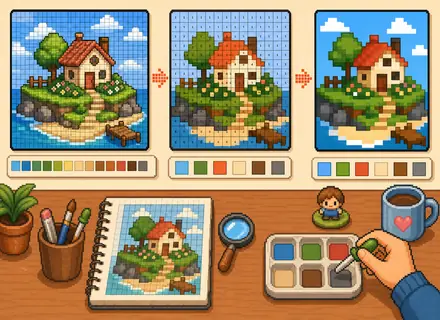
Master the Palette House and unlock your creativity with custom designs, colors, and layouts.
Learn safe sharing options for local play, custom creations, Palette House designs, PNG grid references, and numbered patterns.
Choose grid sizes and canvas presets for icons, clothes, posters, TV screens, book covers, interiors, and custom ratios.
Use numbered pixel grid patterns as paint-by-numbers worksheets for manual Palette House copying.
It is a browser tool that turns images into a paintable pixel grid with palette, brush, and export guidance.
It creates a reference pattern for manual copying. You upload an image, choose a grid size, match colors, export a guide, and recreate the design in Palette House by hand.
The in-game grid view is only a visual overlay. Living the Grid's cells are a copying reference, while the game result depends on the brush size, brush shape, and how you place each stroke.
Not exactly. The game lets you paint on a canvas, and grid-like results come from using consistent brush settings. The exported grid helps you copy the image cell by cell.
Use a square brush and keep the brush size consistent for clean pixel art. If an edge looks soft, simplify the pattern or repaint the outline before copying the next color.
Use dithering for photos, gradients, skin tones, and skies. Leave it off for logos, icons, lettering, and designs that need sharp blocks of color.
Game-compatible 84 is the safer default reference for Palette House copying. Extended 120 keeps the broader helper palette available when you want more color nuance and can adjust by eye.
Labels are reference points. They make it easier to pause, resume, and describe a cell location without losing your place on larger patterns.
No. File reading, color matching, preview rendering, and downloads happen in this browser session.
No. It creates a reference guide that you can recreate manually in Palette House.
Start with 32x32. It has enough detail for most Tomodachi Life pixel art without becoming as slow to copy as 48x48.
A numbered pattern labels each cell with its palette color number, making large designs easier to copy row by row.
Yes. Use smaller grids for clothing icons and larger grids for posters, wall decorations, and TV screen artwork.
No. Living the Grid is an independent fan tool with original interface art and manually curated Palette House reference guidance.
Create your dream island. Your way. We're here to help you make it perfect.