
Import Workflow
How to Import Images into Tomodachi Life
Tomodachi Life does not accept a direct image upload from this tool. The practical workflow is to convert your picture into a clean pixel grid, export a numbered pattern, and copy the design manually in Palette House or another in-game drawing surface.
Tested by Living the Grid editor testing - Last updated
Both tools process your source image locally in the browser. Use Grid Maker for full editing controls or Pixel Art Generator for a faster conversion path.
What This Guide Covers
Importing images into Tomodachi Life means turning a source picture into a clean pixel grid reference, then manually rebuilding it in Palette House. Living the Grid helps with image prep, color matching, numbered patterns, and practical copy steps without uploading art to a server.
Guide Images
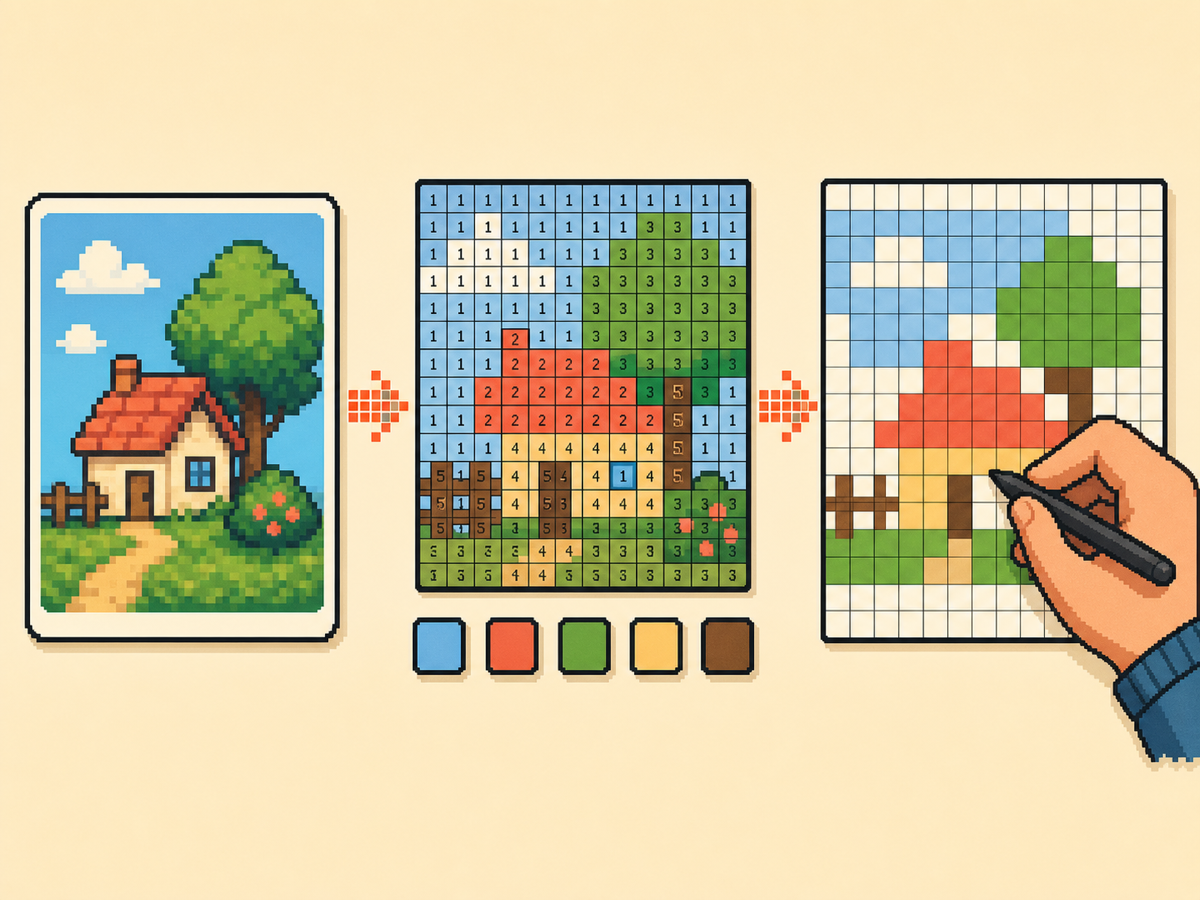
Step-by-Step Workflow
- Choose a simple source image. Start with a picture that has a clear subject, strong outline, and limited background noise. Cropped character art, icons, logos, and simple objects are easier to rebuild than detailed photos.
- Convert the image into a grid. Open the grid maker, upload your image, and choose 32x32 for most artwork. Use 48x48 only when the design needs more detail and you have time to copy more cells.
- Clean up the pattern. Use the brush, fill, eraser, picker, and zoom tools to remove stray pixels and simplify color regions before you export.
- Export a numbered guide. Download the numbered pattern so every cell maps to a palette swatch. Keep the clean PNG nearby as a visual reference for the final image.
- Recreate the design in-game. Copy the pattern row by row. Work from outlines to large color blocks, then add small highlights and accents last.
Grid Choices and Tradeoffs
| Choice | Best For | Tradeoff |
|---|---|---|
| 16x16 | Icons, badges, and very simple logos | Fast to copy, but small details disappear quickly. |
| 32x32 | Most character art, symbols, and starter imports | Balanced detail without turning the import into a long session. |
| 48x48 | Faces, posters, and art with several important shapes | Clearer detail, but every extra row takes more time to repaint. |
Photos, PNG Files, and Source Images
The best source images are readable at small sizes. If the subject disappears when you zoom out, it will usually become messy after conversion.
Before uploading, crop around the important subject and remove unnecessary background detail. A tight crop gives the grid more room for the part of the image you care about.
PNG, JPG, WebP, and GIF files all work as source images. A PNG with a clean background is usually easiest, while a detailed photo often needs tighter cropping, fewer colors, and more manual cleanup.
Image Importer vs Copy and Paste
Living the Grid is an image-to-grid converter, not a direct Tomodachi Life importer. It reads the image in your browser and creates a reference you can follow without changing a save file or sending the art into the game.
Tomodachi Life does not provide a normal image copy-and-paste box for Palette House. Export the numbered pattern and clean PNG, then recreate the design manually row by row.
Tomodachi Life image import workflow
The safest workflow is image to grid, grid to numbered pattern, then numbered pattern to hand-painted Palette House design. This keeps the process practical even though the game does not accept a direct upload from a web tool.
Searches like "tomodachi life image import" and "importar imagenes tomodachi life" usually mean the same thing: players want to turn a picture into something they can recreate in-game. Living the Grid supports that workflow by making the reference easier to copy.
Best settings for imported images
Use 32x32 when you want a balanced first result. Use 48x48 for faces, posters, and designs with small shapes. Reduce the max colors when the numbered pattern becomes too busy to follow.
Turn dithering off for logos, icons, letters, and clothing edges. Turn dithering on only when the source has gradients, skin tones, skies, or soft shading that would look flat without mixed pixels.
Why Numbered Patterns Matter
A numbered pattern is easier to copy than a plain image because every grid cell points to a specific palette color. This reduces guesswork when two shades are close together.
For larger designs, copy one row or block at a time. The numbers make it easier to pause and resume without losing your place.
Before You Upload: Source Image Checklist
The strongest imports have one subject, a clear outline, and a background you can remove without losing the point of the picture. Logos, icons, character faces, and high-contrast objects usually convert better than full screenshots.
If the subject is small inside the original image, crop first. A 32x32 grid only has 1,024 cells, so every cell spent on empty background is a cell you cannot use for eyes, hair, lettering, or clothing edges.
Copying the Pattern Without Losing Your Place
Treat the export like a map. Start with the outer silhouette, then fill the largest color regions, then place small highlights and edge corrections. This order makes mistakes visible before the design becomes crowded.
For a 48x48 pattern, divide the grid into four quarters or six horizontal bands and finish one area at a time. If you stop mid-session, write down the last row or block you completed so you do not repaint the same cells twice.
How to Fix a Bad Import Result
If the converted image looks muddy, do not try to rescue every pixel by hand. Go back to the source, raise contrast, crop tighter, reduce the color count, or choose a smaller grid that forces simpler shapes.
If the numbered guide feels hard to read, export both the numbered pattern and the clean preview. Use the clean preview to understand the final image, then use the numbered version only when you need exact cell placement.
Common Mistakes to Avoid
- Trying to import directly. The export is a visual guide, not a game file. Plan time to copy the result manually in Palette House.
- Keeping the whole image. Uncropped screenshots waste grid cells on background. Crop tightly around the subject before conversion.
- Using too many colors. Close shades slow down hand-copying. Reduce the palette when numbers become hard to follow.
Related Guides
Frequently Asked Questions
Can you import images directly into Tomodachi Life?
No. Living the Grid does not inject images into the game. It converts your picture into a numbered pixel grid reference that you copy manually in Palette House or another in-game drawing surface.
What is the fastest image import workflow?
Crop the image tightly, start with 32x32, keep Game-compatible 84 selected, export a numbered pattern, then copy the outline first before filling large color blocks.
Can Living the Grid send an image directly into Tomodachi Life?
No. It creates a reference pattern that you recreate manually. The export is a guide, not a direct game import file.
Can I use a photo or PNG for Tomodachi Life pixel art?
Yes. Upload the photo or PNG to Living the Grid, crop it, reduce the colors, and export a numbered reference. You still copy the converted design into Palette House by hand.
Can I copy and paste an image into Tomodachi Life?
No. Palette House does not accept a normal image paste from this website. Use the exported grid as a manual cell-by-cell reference instead.
What grid size should I use first?
Start with 32x32. It keeps most designs readable without making the copy process too slow.
Do I need to upload the image to a server?
No. The conversion runs locally in your browser, and downloads are generated from your current session.
Why does my imported image look blurry?
Most blurry results come from too many similar colors or a subject that is too detailed for the chosen grid. Crop tighter, increase contrast, or reduce the palette before exporting again.
Should I copy the numbered guide exactly?
Use it as the starting plan, then adjust by eye. Manual cleanup is normal, especially around faces, letters, outlines, and small highlights.