
Palette House Tutorial
How to Make a Tomodachi Life Pixel Grid
A Tomodachi Life pixel grid turns an image into a cell-by-cell reference pattern for Palette House. This guide explains how to prepare the image, choose a grid size, simplify colors, export a numbered pattern, and copy the result into the game without losing the original design.
Tested by Living the Grid editor testing - Last updated
Open the Grid MakerWhat Is a Tomodachi Life Pixel Grid?
A Tomodachi Life pixel grid is a simplified pixel pattern that breaks an image into numbered cells. Each cell maps to a color in a Tomodachi-style palette, so you can recreate portraits, clothes, posters, TV screens, and room decorations manually inside Palette House.
Guide Images
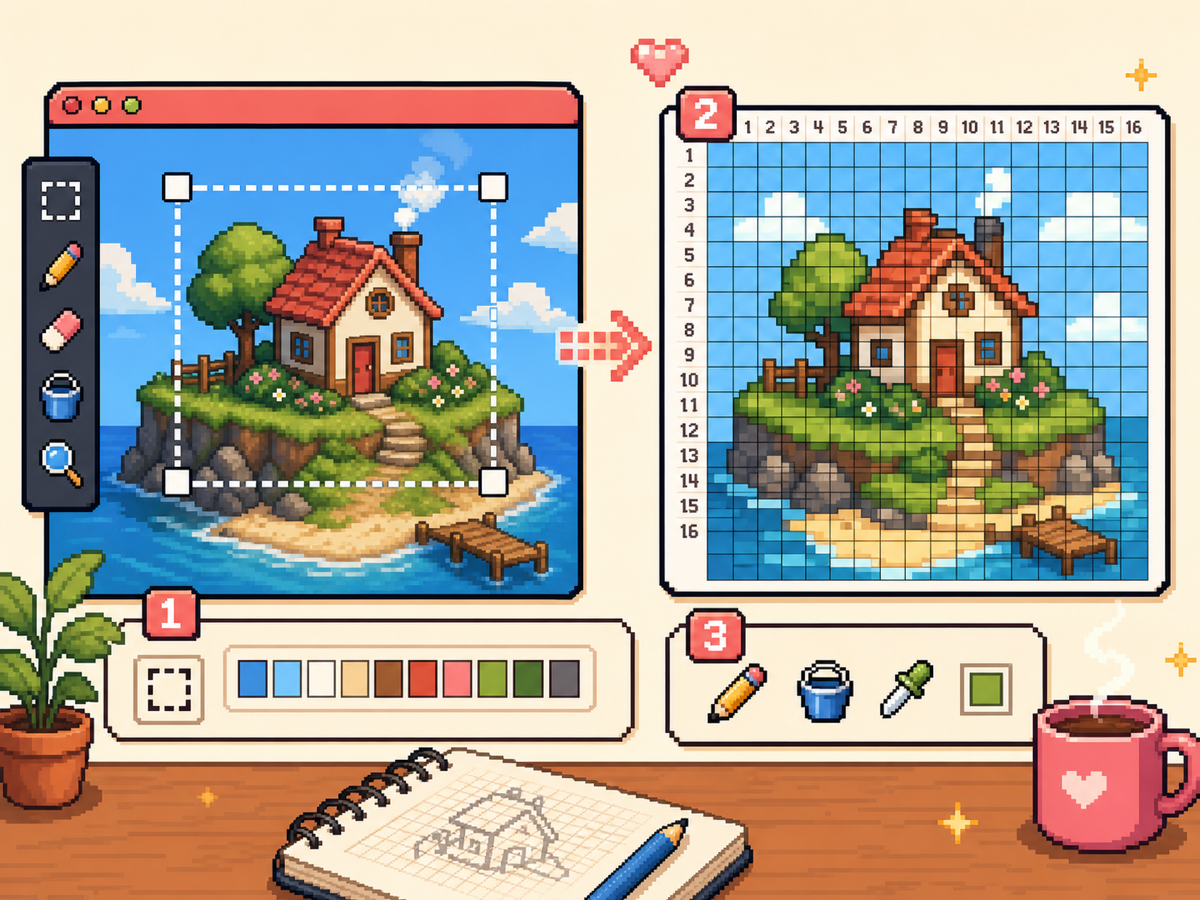
How to Convert an Image into a Pixel Grid
- Start with a clear image. Use a source with strong outlines, simple lighting, and enough contrast between the subject and background. Pixel grids work best when the important shape is readable before conversion.
- Crop around the subject. Remove empty edges and tiny details. A tighter crop gives the grid maker more cells for the part of the image you actually want to copy.
- Choose the right grid size. Use 16x16 for icons, 24x24 for simple objects, 32x32 for most custom items, and 48x48 when faces or detailed scenes need extra cells.
- Reduce noisy colors. Dithering can help gradients, but too much dithering makes a manual Palette House copy harder. Use the reduced palette option when the pattern has too many tiny color changes.
- Export a numbered pattern. The numbered PNG is the easiest version to copy because each number points to a palette swatch. Keep the clean grid beside it if you want to check the final image while painting.
Tomodachi Life Grid Size Comparison
| Grid Size | Use It For | Best Practice |
|---|---|---|
| 16x16 | Icons, emblems, simple symbols | Keep shapes bold and avoid small facial features. |
| 24x24 | Small objects, signs, simple clothing details | Use fewer colors so the pattern stays fast to copy. |
| 32x32 | Most custom items, posters, and clothing art | Start here when you are not sure which size to use. |
| 48x48 | Portraits, room art, detailed TV screen images | Reserve time for careful cleanup and row-by-row copying. |
Tips for Cleaner Palette House Results
Work from large shapes to small details. Copy the outline first, fill the biggest color regions second, and leave highlights or tiny accents until the end. This order makes mistakes easier to spot because the overall silhouette appears before the pattern gets busy.
If the output looks muddy, lower the grid size or simplify the source image before exporting again. A cleaner 32x32 pattern often looks better in-game than a noisy 48x48 pattern with too many similar shades.
Keep numbered patterns visible while you paint. The numbers reduce eye strain and make it easier to resume a design later, especially when two palette colors are close together.
Before You Start: Image Prep Checklist
A good grid starts before you upload the file. Choose an image with one main subject, remove extra background, and make sure the important shape is recognizable when the image is small. If the design only works at full size, it will usually become confusing after conversion.
Square crops are easiest to reason about, but the subject matters more than the crop shape. For faces, keep the eyes and hair shape clear. For logos, preserve the outer silhouette. For clothing marks, remove tiny texture and keep only the readable symbol.
How to Choose Between 32x32 and 48x48
Use 32x32 when you want the fastest reliable copy or when the design is built from bold shapes. It gives enough space for most icons, simple portraits, posters, and shirt art without turning the project into a long repainting session.
Use 48x48 only when the extra cells add real information: facial features, readable title-card shapes, detailed room art, or a poster with several important objects. If the 48x48 preview looks noisy, a cleaner 32x32 export is usually the better result.
Common Mistakes to Avoid
- Starting with a detailed photo. Photos often contain soft shadows, texture, and background noise. Crop tightly, raise contrast, and reduce colors before expecting a clean grid.
- Choosing the biggest grid by default. A larger grid is not automatically better. More cells can preserve detail, but they also create more opportunities for noise and copying mistakes.
- Copying tiny details first. Place the silhouette and large fills before small highlights. This makes it easier to catch a shifted row or wrong color before the design becomes crowded.
Troubleshooting a Messy Pixel Grid
If the converted grid looks muddy, check the source image first. Low contrast, dark screenshots, soft gradients, and busy backgrounds usually create the most confusing patterns.
Try one fix at a time: crop closer, reduce the palette, remove the background, or test a smaller grid. Export a plain preview alongside the numbered pattern so you can judge the final image without labels covering the cells.
Related Guides
Frequently Asked Questions
Can I import the image directly into Tomodachi Life?
No. Living the Grid creates a visual reference pattern. You still recreate the design manually in Palette House or any compatible in-game drawing workflow.
Does the grid maker upload my image?
No. The image is read in your browser, converted on canvas, and exported locally. The source file does not need to leave your device.
What is the best grid size for beginners?
Start with 32x32. It gives enough detail for most Tomodachi Life pixel art without becoming as slow to copy as 48x48.